
 Join our Discord
Chat that helps players find the command and set the scene
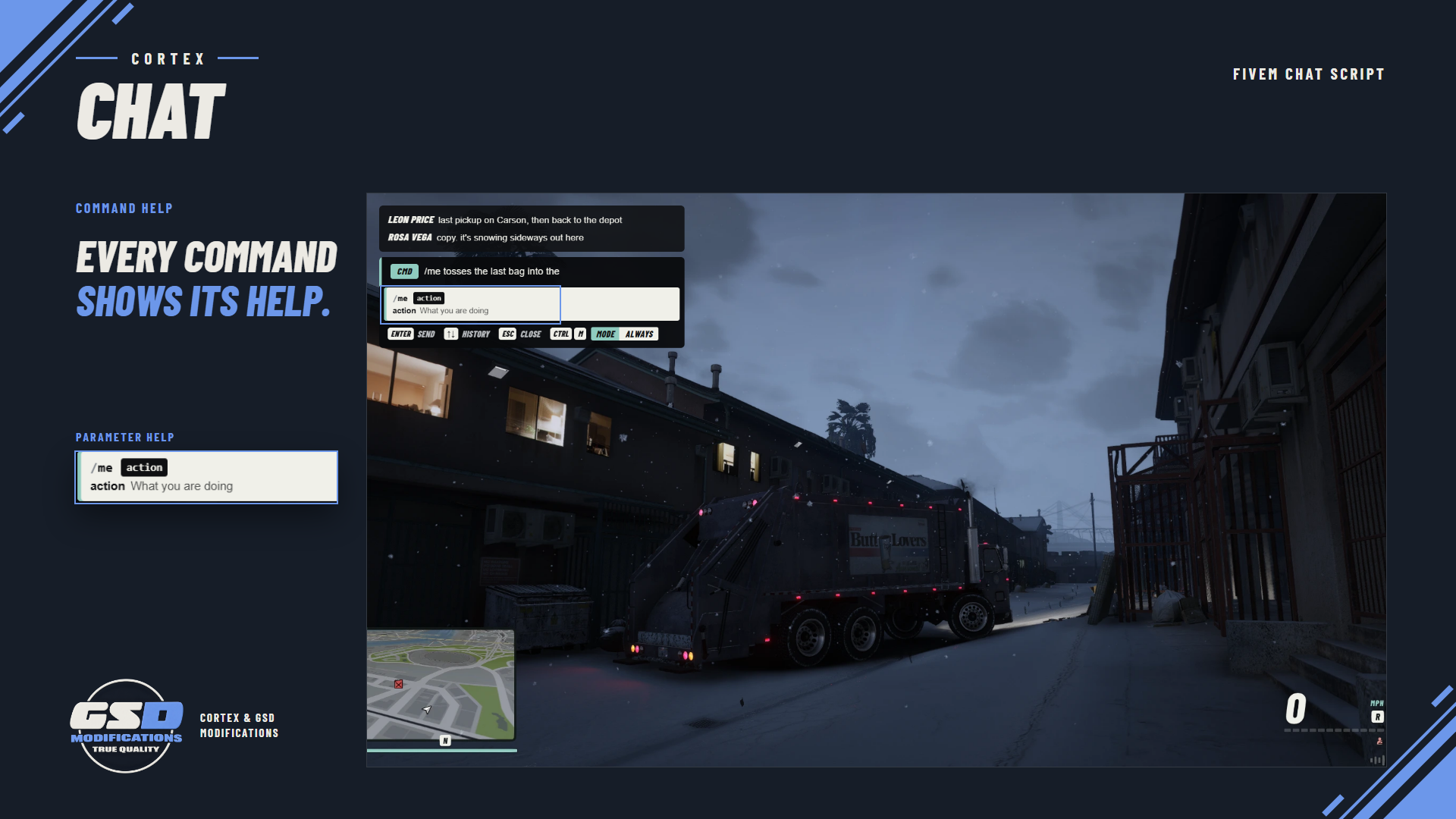
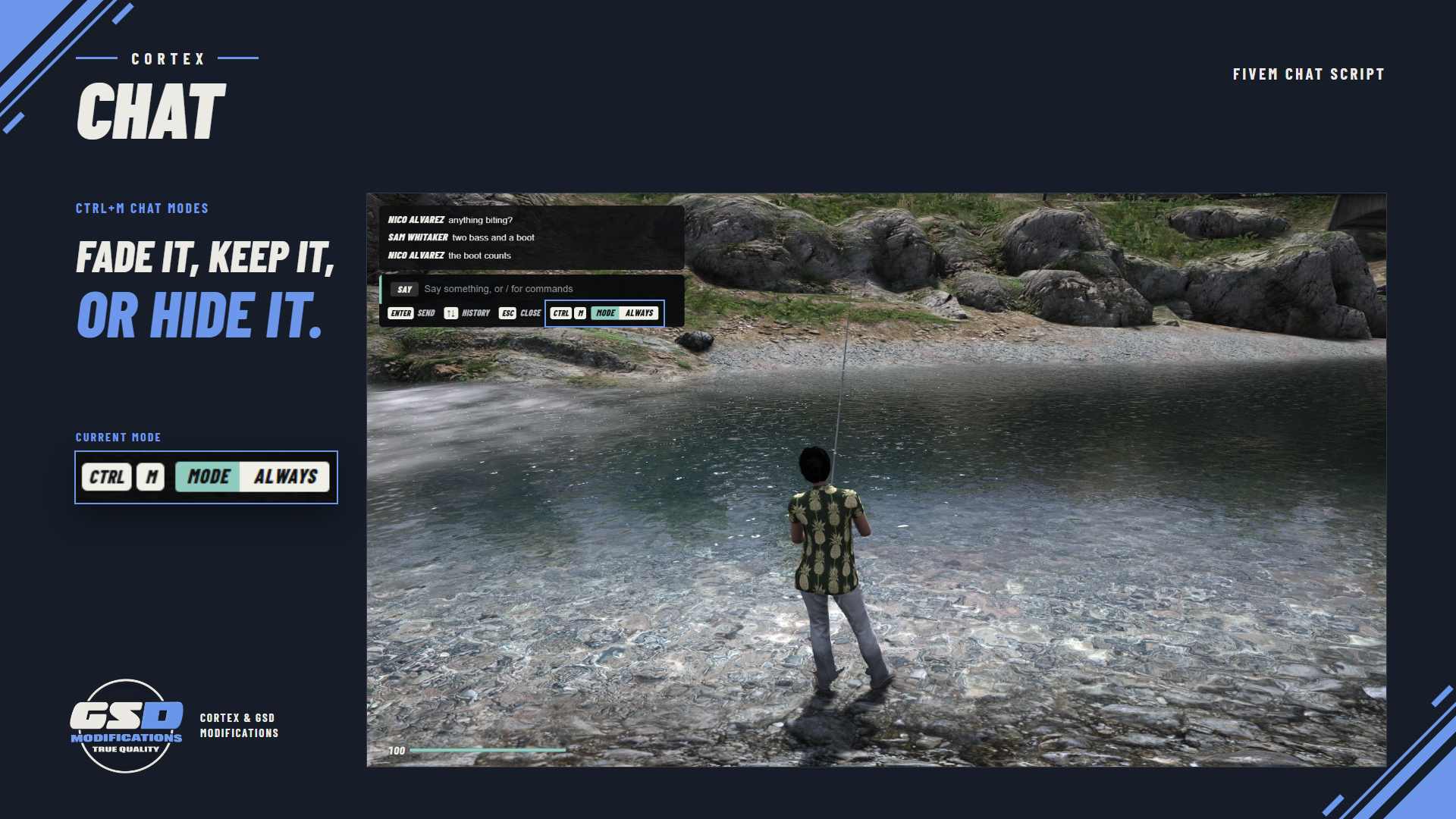
Cortex Chat brings conversation, commands and familiar roleplay actions into one configurable chat window. Players type a command and see matching suggestions, then see what each parameter expects without leaving the game.
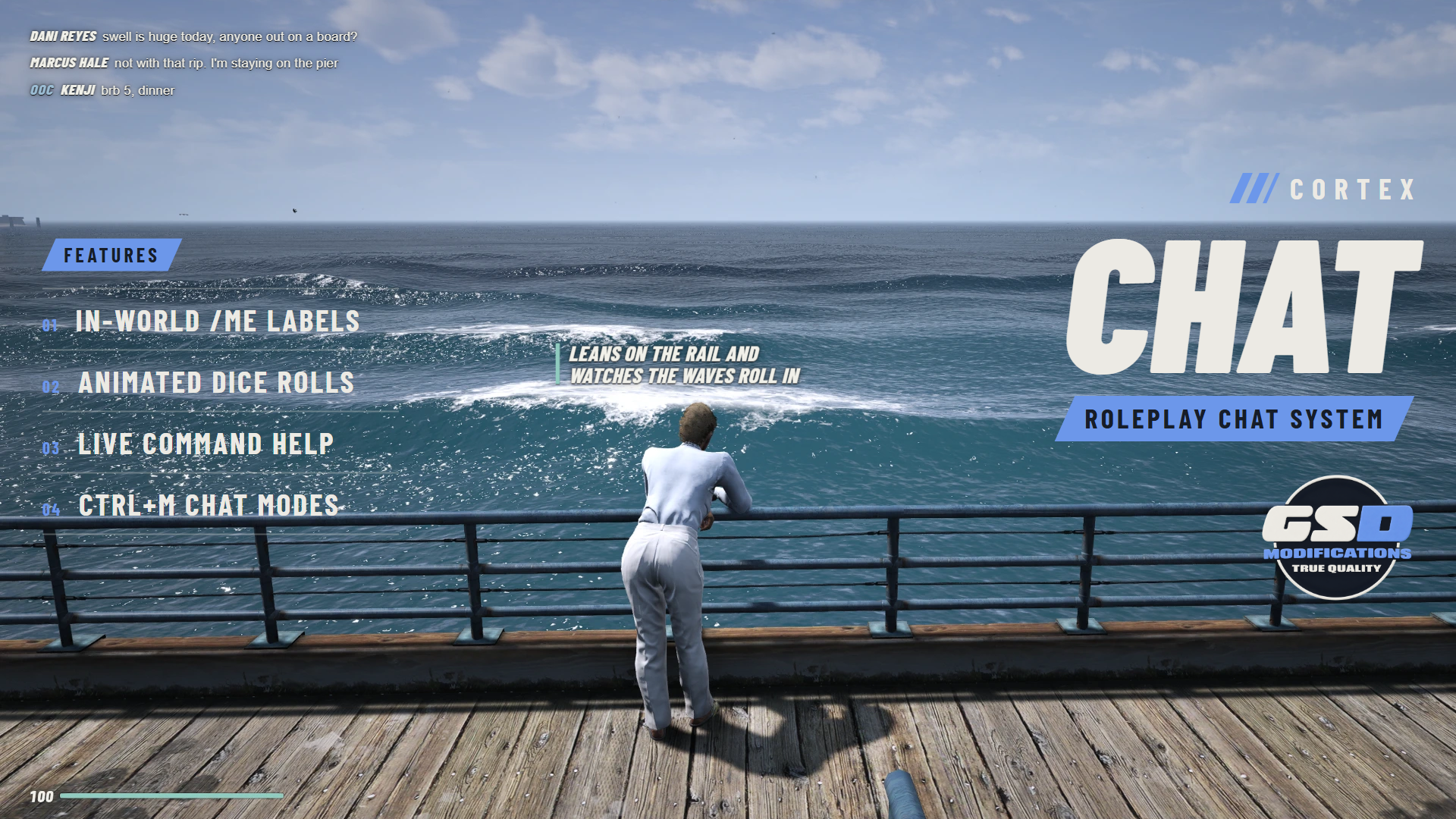
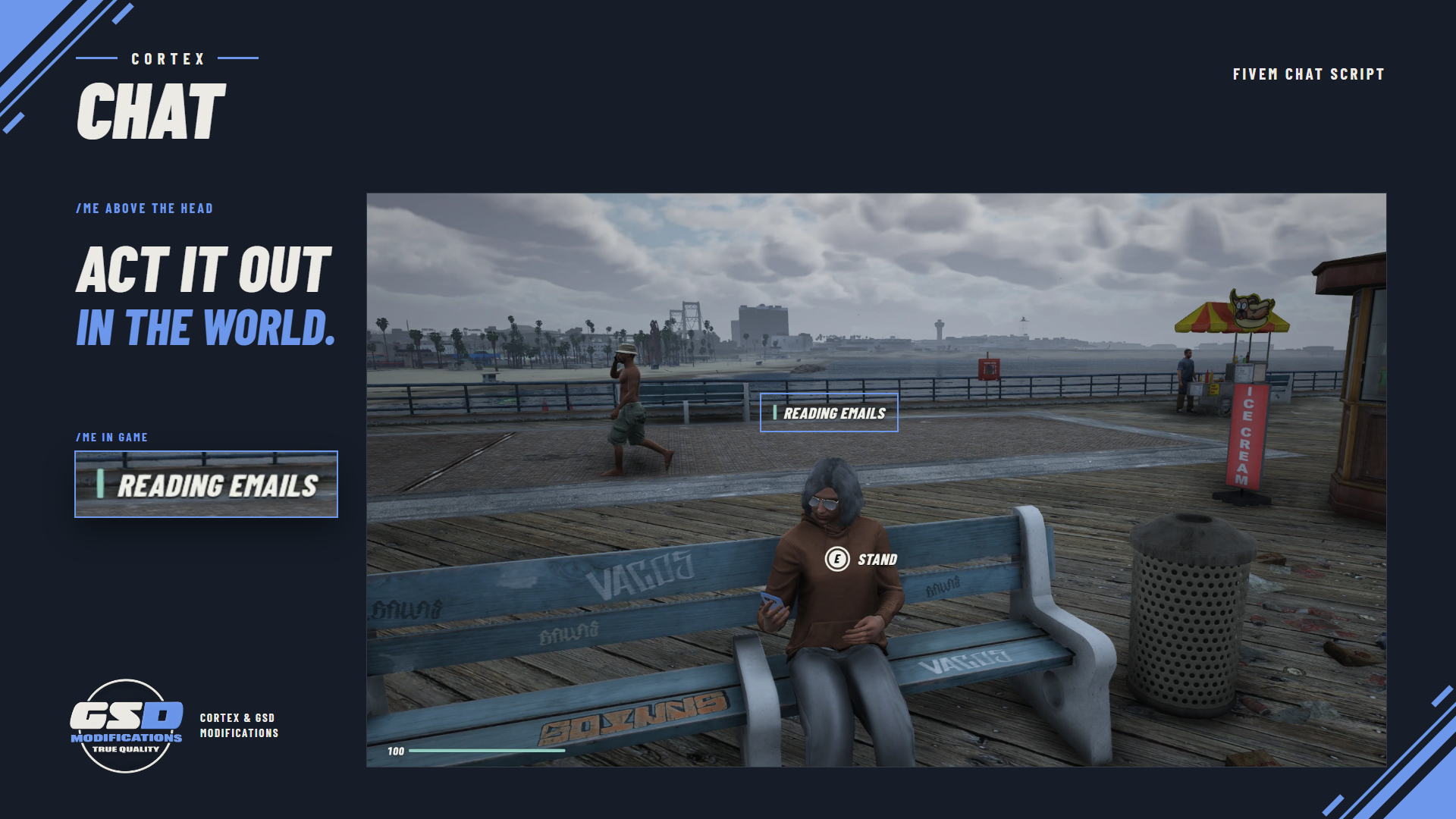
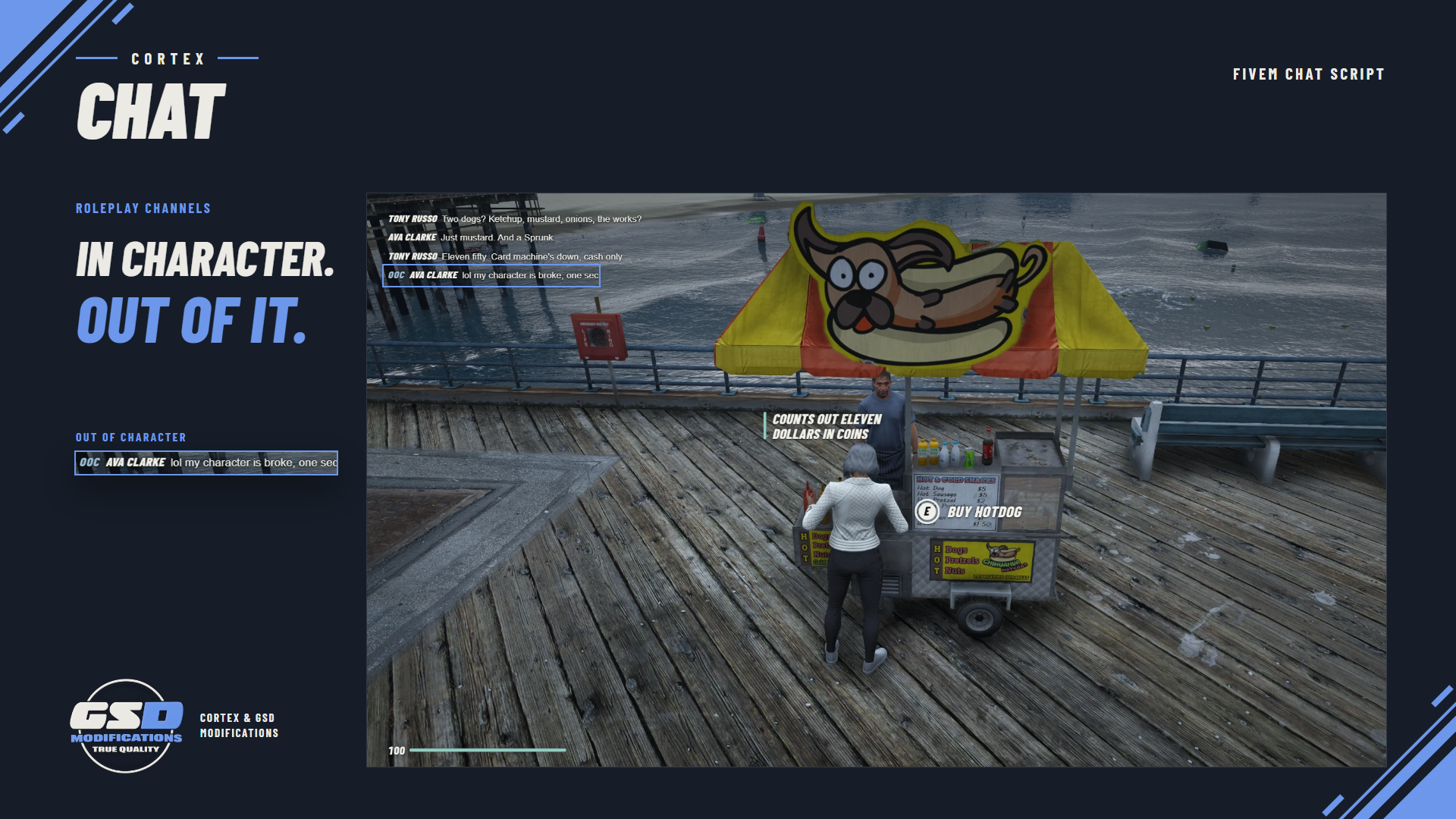
For roleplay servers, /me actions appear above the character in the world, with proximity messages, global actions, out-of-character chat and dice rolls for other kinds of interaction. For owners, cooldowns, flood controls and optional word filtering keep the chat usable.
Features
Chat and commands
-
Command suggestions. Type
/mand see matching commands with a description of each. - Parameter help. See what a command expects next as you fill it in.
- Optional slash entry. Supported commands work with or without a leading slash.
- Unread-message handling so closed chat still shows new messages.
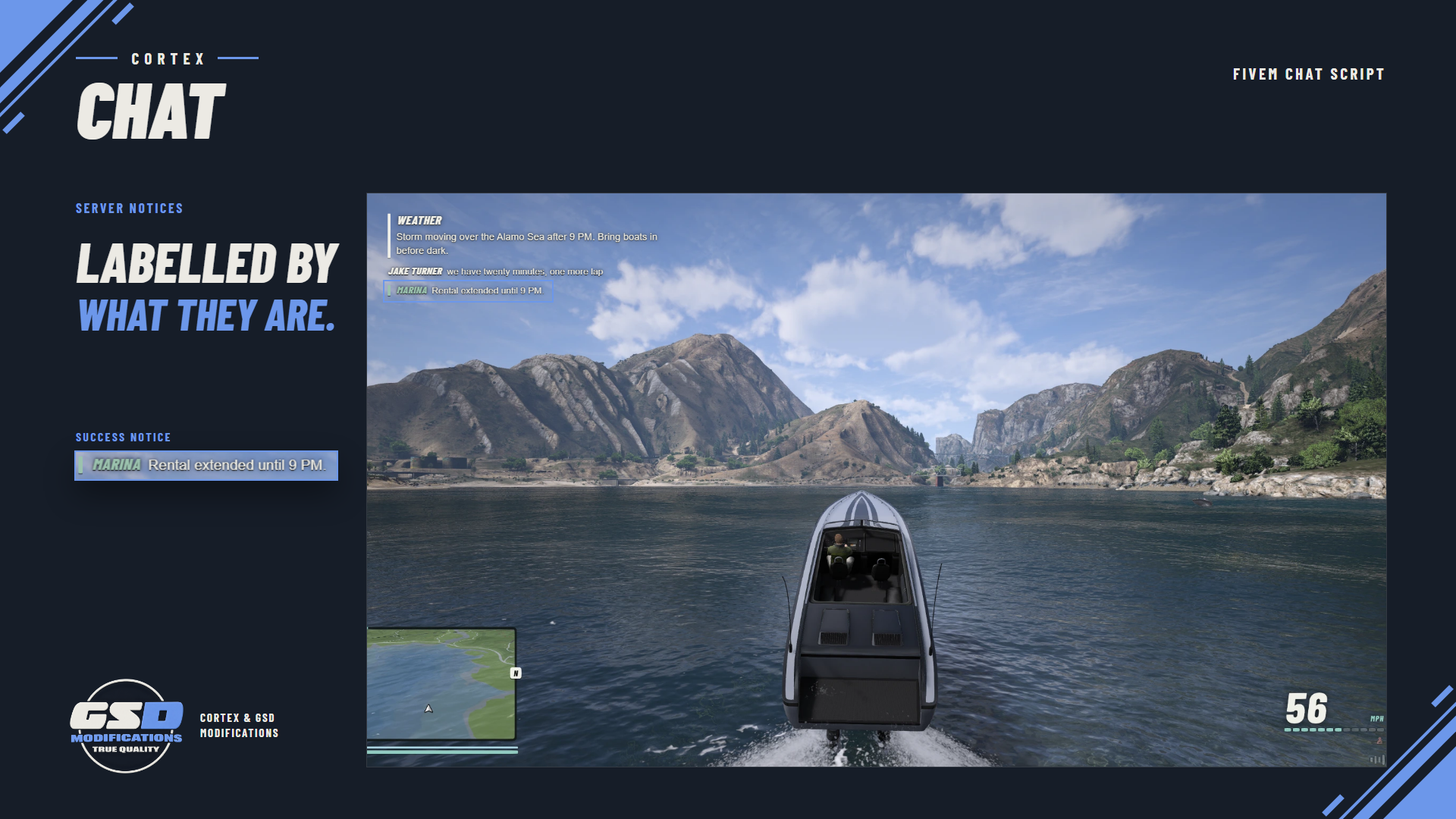
- Message types for announcements, system notices, warnings and errors, each styled differently.
Roleplay actions
- Overhead /me. The action floats above the character in the world, such as "peaks over shoulder" or "eats hotdog".
- Global actions and out-of-character chat for different kinds of interaction.
- Optional proximity limits so local actions stay local.
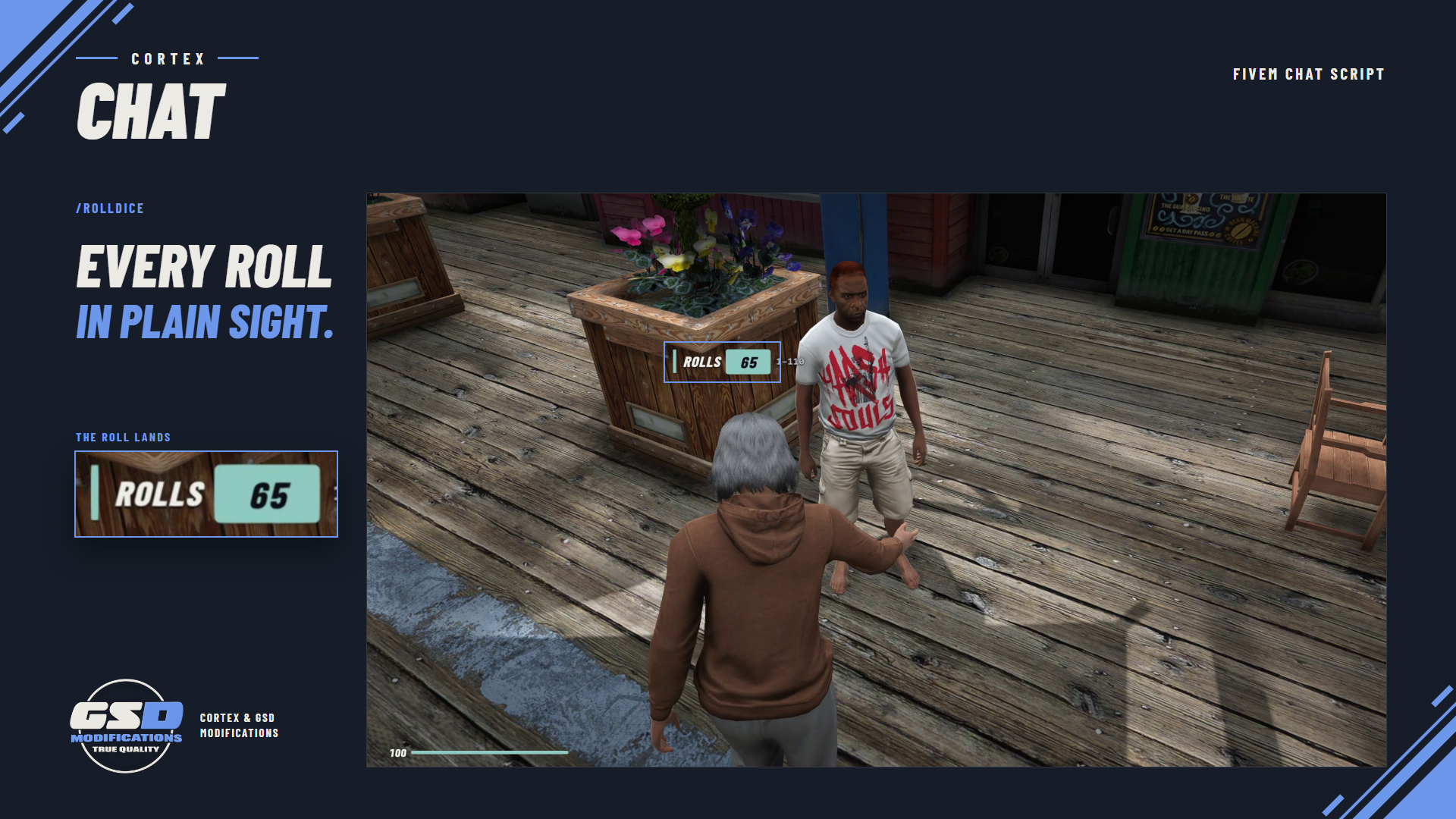
- Configurable overhead dice rolls.
Player appearance
- Player-set display. Players adjust chat size, opacity, font and accent colour through Cortex Settings.
- Server defaults. Owners choose how much history stays visible, where messages appear, when the chat fades and how it is coloured.
Moderation and administration
- Message cooldowns and flood controls.
- Optional word filtering.
- Staff /dv for deleting vehicles. The server checks permissions and the target vehicle, including distance, routing bucket and occupancy.
- Editable settings for chat behaviour and vehicle-deletion permissions.
These controls make Chat useful on standalone servers as well as servers that connect it to a supported staff system.
Requirements
- Cortex Lib
- OneSync
- No roleplay framework or database required.
Good to know
- Disable any other chat resource before starting Cortex Chat.
Resource folder: cortex-chat